The most requested feature of Keyman for Android was to be able to use Keyman keyboards across all apps on the device. With the latest 1.1 version update to our app, it's now a reality! Here is a step-by-step guide to install a keyboard across your entire Android device:
Step 1
Download and install the Keyman for Android app.
Step 2
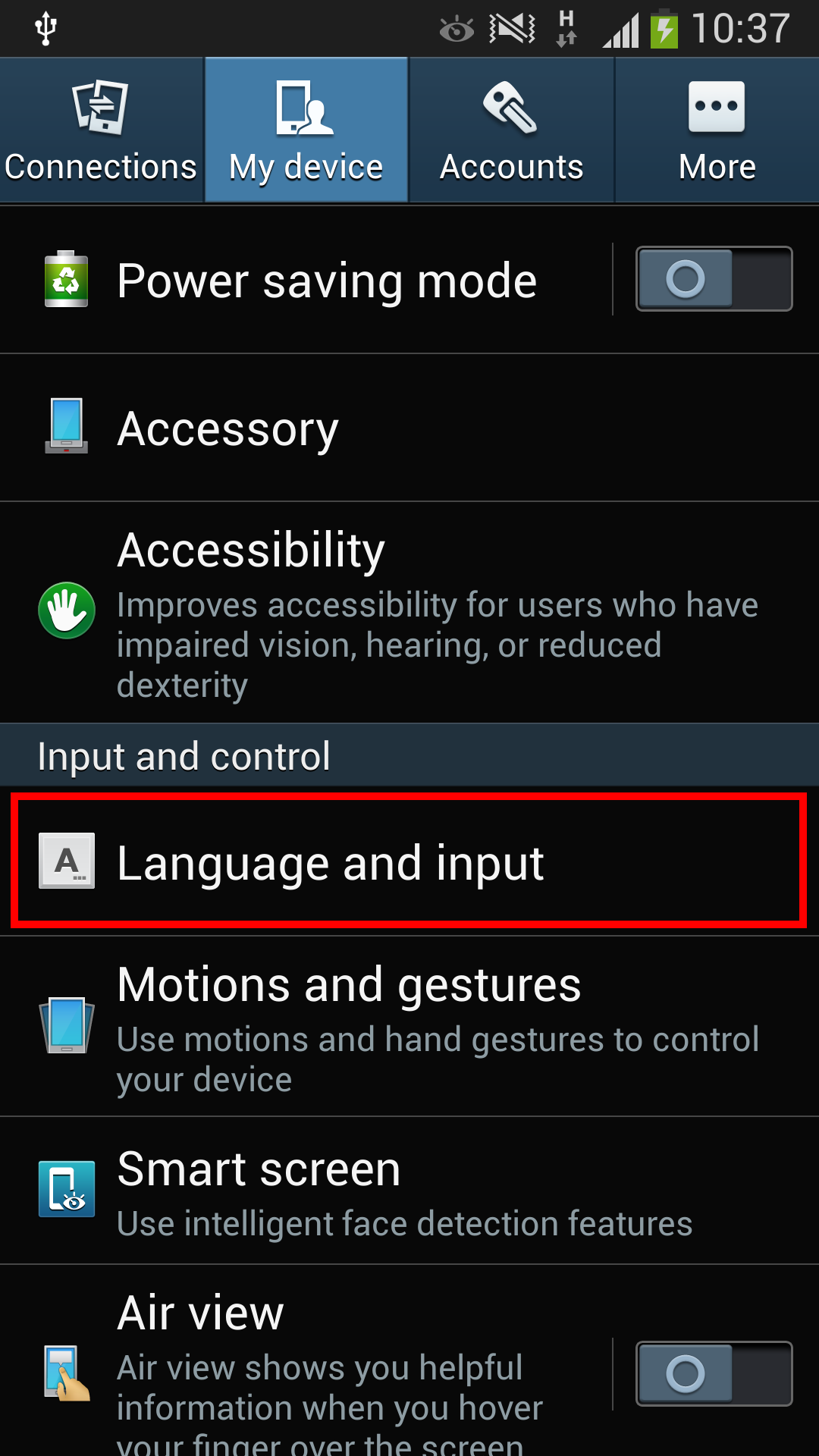
Open the Settings app on your Android device, and navigate to Language and input. The screenshot below is of a device running Android 4.2.
Step 3
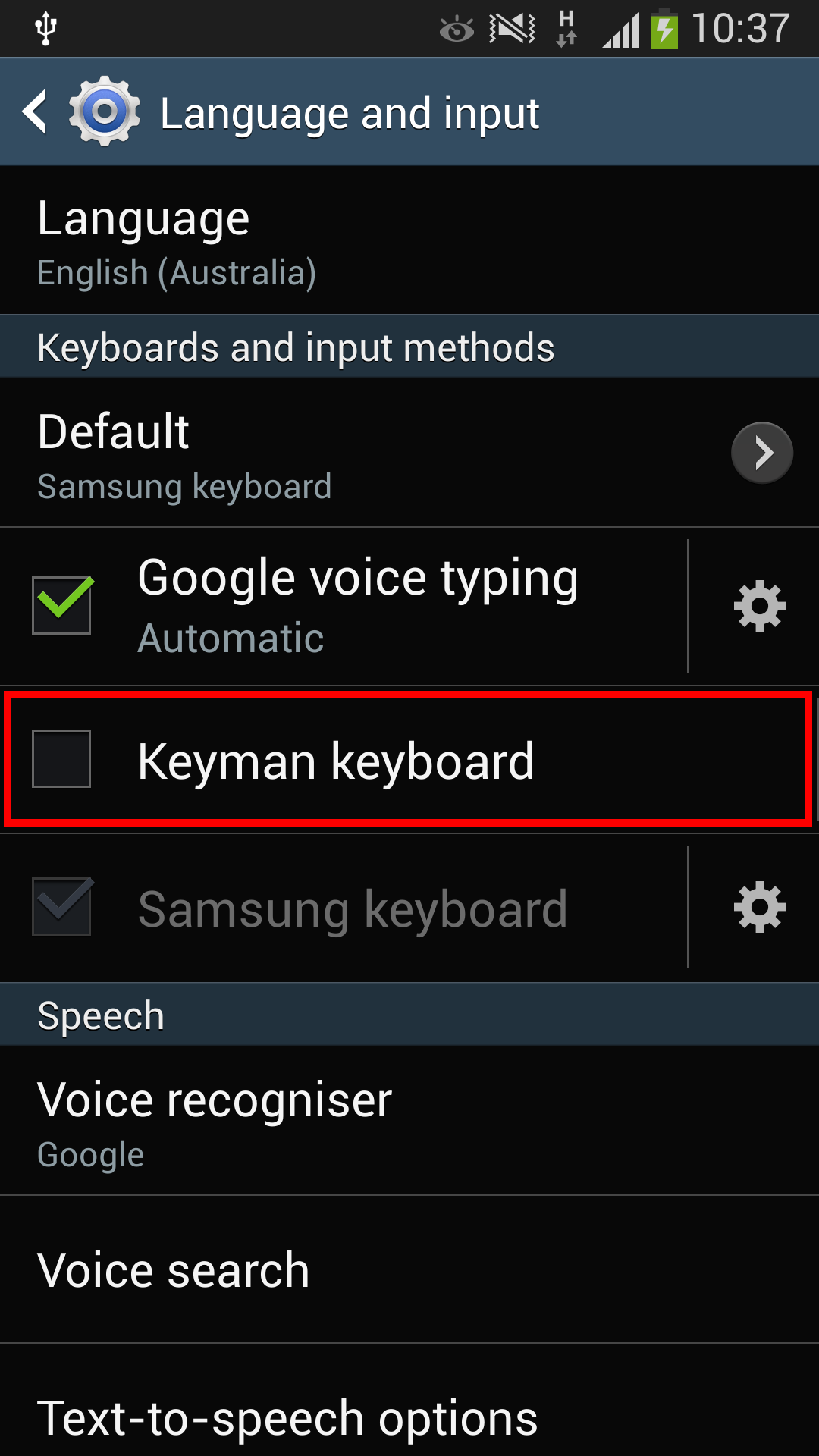
Select 'Keyman' under the Keyboard and input methods section.
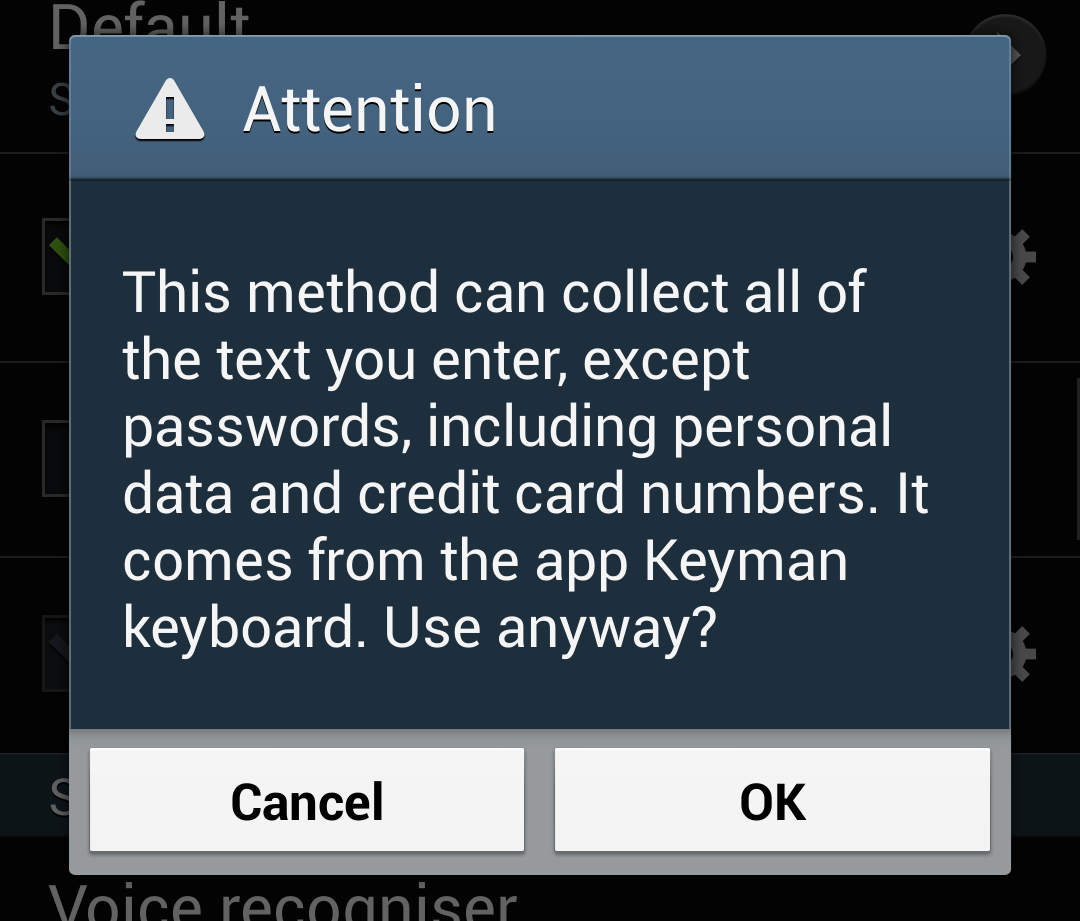
This will open a dialogue box asking you to confirm your choice. Select 'OK'.
Step 4
Select 'Default' under the Keyboards and input methods section.

This will open a radiobox with all available input methods.
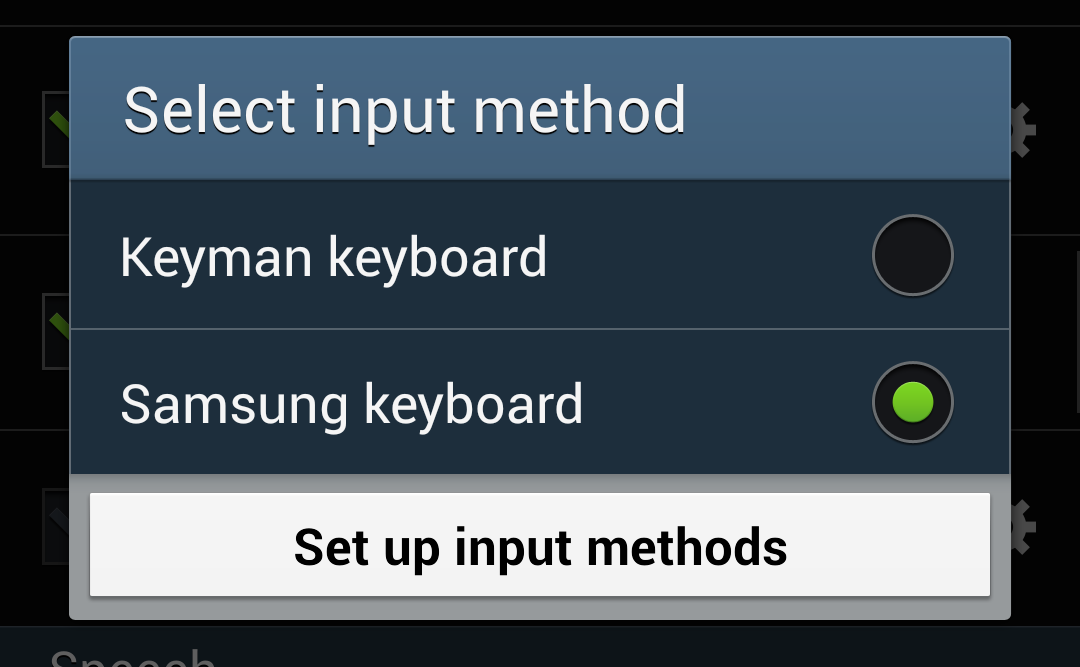
Change the selection to 'Keyman'.

Your Language and input screen should now look something like this:

Keyman is now installed as the default keyboard for all apps. Let's try it out!
Using the Keyboard
Here I'm going to use the Keyman keyboard in the Android message application. I'll also go through how to add and switch keyboards to type in different languages. By default, Keyman provides an English (USA) keyboard layout.
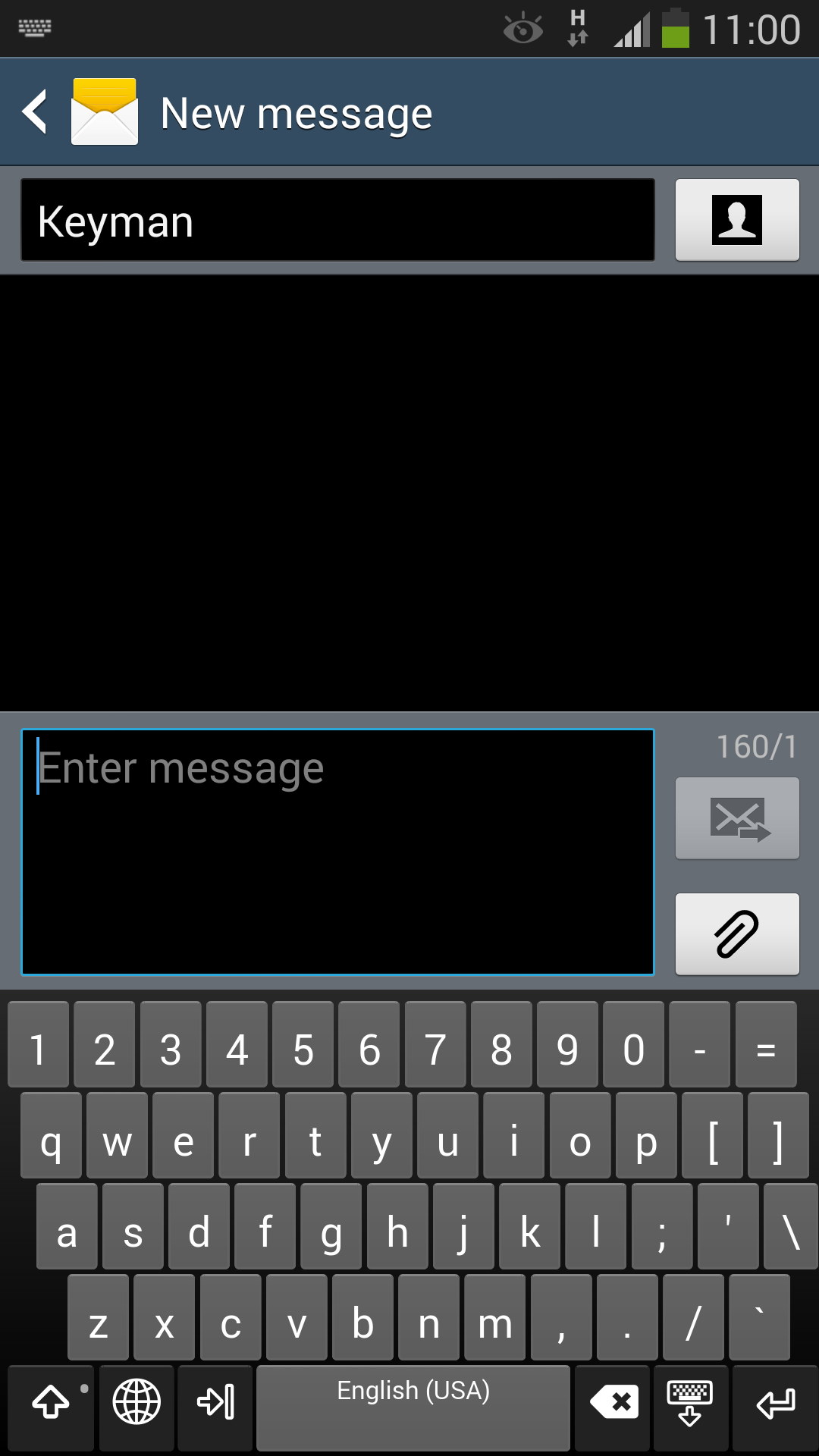
The Keyman keyboard will automatically appear anytime you select a text field or input in any app or website where a keyboard would normally appear. Below I will outline the steps in adding and changing keyboards.
Changing Keyboards
The default keyboard with Keyman for Android is the English (USA) keyboard. The method for downloading new keyboards and swapping the active keyboard is quite simple:
Touch the globe key at the bottom of the keyboard to bring up a list of all installed keyboards.

Touch the green plus icon to add a new keyboard.
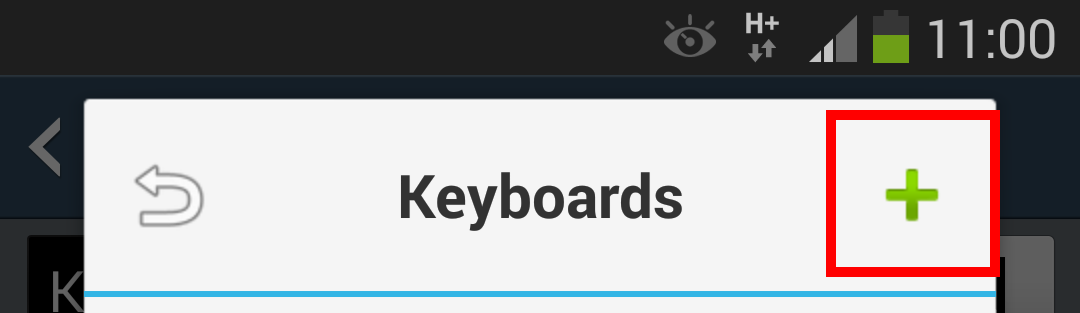
This will bring up a list of all available keyboards for download. Select the keyboard you want to install, and select 'OK' when it asks you to confirm the download. This will now bring you back to the list of installed keyboards:
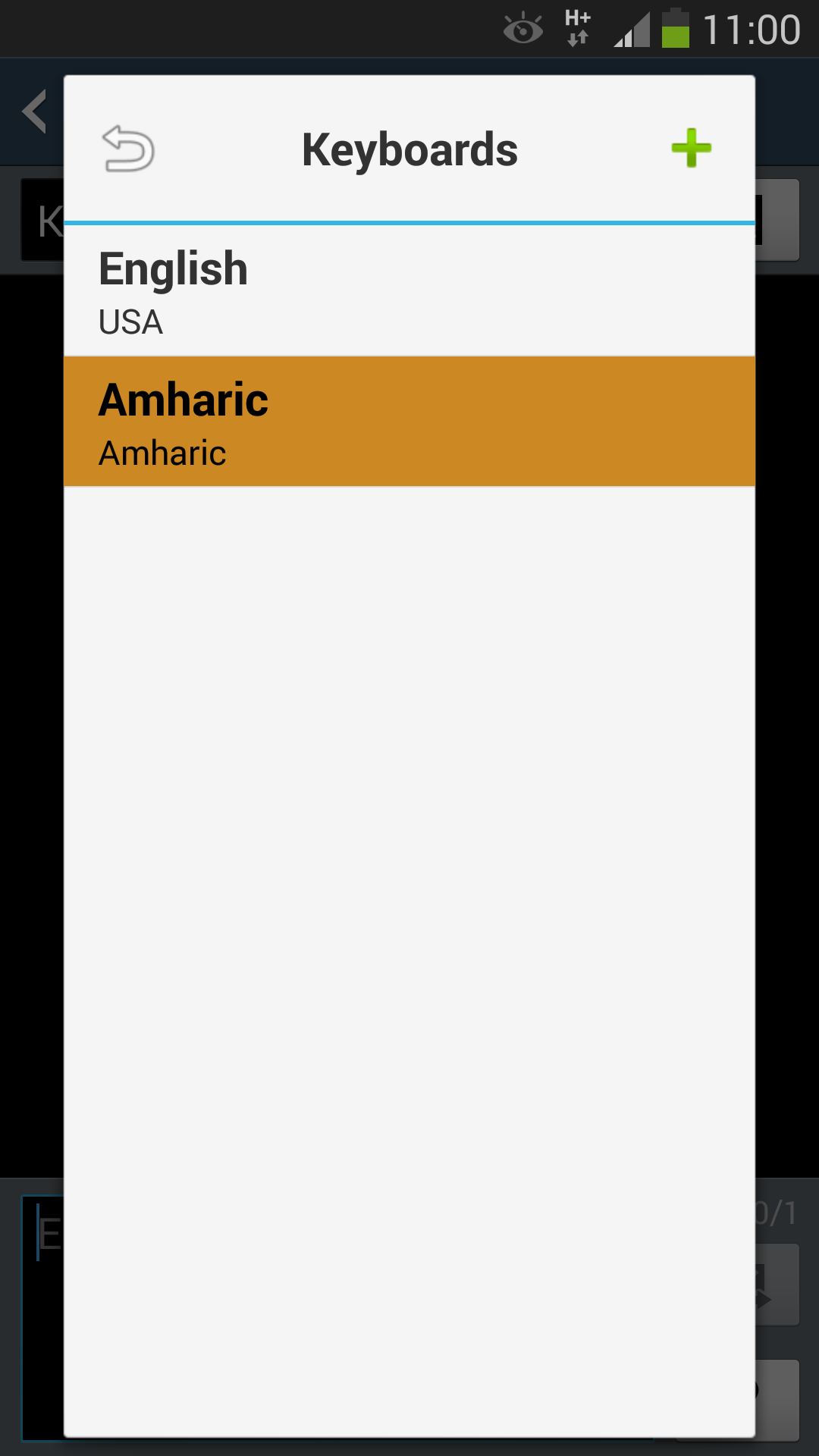
Touch the return icon (top left corner) and the keyboard should change to the newly selected keyboard. In my case I chose the Amharic keyboard.

Now I'm ready to start typing my message in Amharic!
Once a keyboard has been downloaded to the device, you will be able to use it without any connectivity – handy if you are outside of the range of your telephone service.
Unfortunately one of the current limitations of the Android OS is that you can't install custom fonts at the system level, so if the keyboard you install uses a non standard font, it will most likely not display. In this situation, use the Keyman app to get full support for your language and font within the app itself.
4 thoughts on “Use Your Keyman Keyboard In All Apps On Your Android Device”
Akbar · March 1, 2014 at 3:55 am
very useful app. Excellent
tecle · March 1, 2014 at 4:16 am
it is very important for our children
Ricardo Roman · March 2, 2014 at 1:44 am
How do you type the Uppercase letters? ( = ABCDEFGH…)
Jeremy - Tavultesoft · March 3, 2014 at 2:02 pm
Hi Ricardo Roman, it depends on the keyboard — some don’t have uppercase letters. For those that do (for example the default English US), simply touch the Shift arrow (in the bottom right corner of the keyboard) to access the alternative Shift layer.
Comments are closed.