When using Windows Live Mail 11 with the European Latin keyboard, you may find extra apostrophes appearing when trying to type words such as café. This would appear as caf'é. Similarly, typing a Hungarian word such as ősi would appear as "ősi.
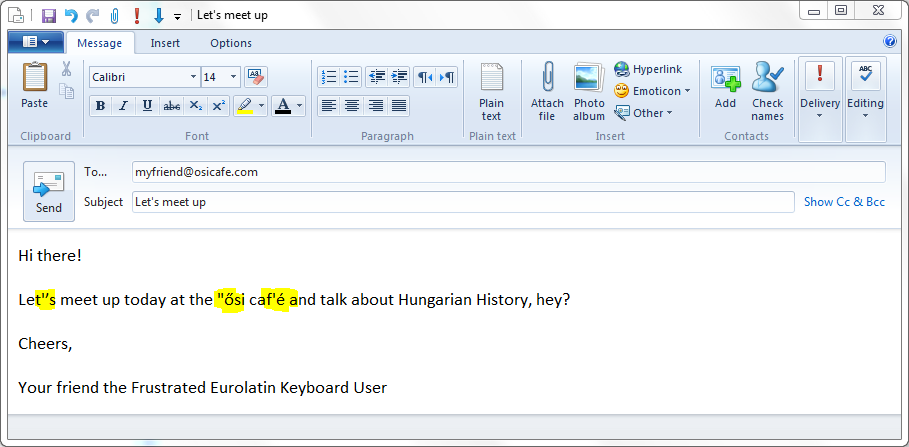
This issue occurs because Windows Live Mail dynamically converts "straight quotes" into “smart quotes” when you type them. This issue is exacerbated because pressing backspace after typing the quote character restores the straight quote, rather than deleting the character you just typed.
To prevent this behaviour, you need to turn off smart quotes in Windows Live Mail. First, close Windows Live Mail (you need to close the icon in the system tray as well), then follow the steps below:
- Click Start, type regedit and press ENTER.
- Navigate to HKEY_CURRENT_USERSoftwareMicrosoftWindows Live MailComposePreferencesPostEditorAutoreplace.
- If an entry named SmartQuotes does not exist, select Edit > New > DWORD Value, call this new entry SmartQuotes, and press ENTER.
- Right-click on the entry SmartQuotes, and select Modify.
- Enter the value to 0 and click OK.
- Close Registry Editor.
This issue is also documented in Tavultesoft Knowledge Base article KMKB0073. Here's to ending frustrations!
<p>When using Windows Live Mail with the European Latin keyboard, you may find extra apostrophes appearing when trying to type words such as <b>café</b>. This would appear as <b>caf'é</b>. Similarly, typing a Hungarian word such as <b>ősi</b> would appear as <b>"ősi</b>.</p>
<p><b>Note: similar symptoms may also appear with some other keyboard layouts that use the quote keys and these instructions should resolve the problem for these other keyboard layouts in the same way.</b></p>
<h1>Background</h1>
<p>This issue occurs because Windows Live Mail dynamically converts "straight quotes" into “smart quotes” when you type them. This issue is exacerbated because pressing backspace after typing the quote character restores the straight quote, rather than deleting the character you just typed.
<h1>Resolution</h1>
<p>To prevent this behaviour, you need to turn off smart quotes in Windows Live Mail. First, close Windows Live Mail (you need to close the icon in the system tray as well), then follow the steps below:</p>
<ol>
<li>Click Start, type <b>regedit</b> and press <b>ENTER</b>.</li>
<li>Navigate to HKEY_CURRENT_USERSoftwareMicrosoftWindows Live MailComposePreferencesPostEditorAutoreplace</li>
<li>If an entry named <b>SmartQuotes</b> does not exist, select Edit > New > DWORD Value, and call it <b>SmartQuotes</b>.</li>
<li>Right-click on the entry <b>SmartQuotes</b>, and select <b>Modify</b>.</li>
<li>Enter the value to 0 and click <b>OK</b>.</li>
<li>Close Registry Editor.</li>
</ol>