A month ago we blogged about our new KeymanWeb Wikipedia Plugin. Now you can use KeymanWeb to type in your native language anywhere in Wikipedia. That's right – without a specialised keyboard, you can edit pages,
search for information, or participate in discussions in over 200 languages, including languages like Amharic, Arabic, Hebrew, Mandarin, Russian, Tibetan, and Yoruba, to name just a few.
In this post, I would like to show you how to install and use the KeymanWeb Wikipedia Plugin.
- First, you need to copy a line of code to your clipboard.
- For English Wikipedia users, copy this
importScriptline:importScript('User:Keymanweb/keymanweb.js'); - For users of non-English Wikipedia sites, copy this
importScriptURIline:
importScriptURI('http://en.wikipedia.org/w/index.php?title=User:Keymanweb/keymanweb.js&action=raw&ctype=text/javascript');
- For English Wikipedia users, copy this
- Then visit your Wikipedia
monobook.jspage.- For English Wikipedia users, click here.
- For users of non-English Wikipedia sites, visit your
monobook.jspage for your language. To find the page:- Log into Wikipedia in your language.
- Click your Wikipedia account name (upper right).
- In the address bar of your web browser, add
/monobook.jsto the end of the web-address and click enter.
For example, for Wikipedia in German I would:
- Visit
http://de.wikipedia.organd log in (upper right). - Click on my account name, which takes me to:
http://de.wikipedia.org/wiki/Benutzer:Tavulteguy - Add
/monobook.jsto the web-address and click enter. This takes me to:http://de.wikipedia.org/wiki/Benutzer:Tavulteguy/monobook.js
- If you don't have a
monobook.jspage yet, click to create one now.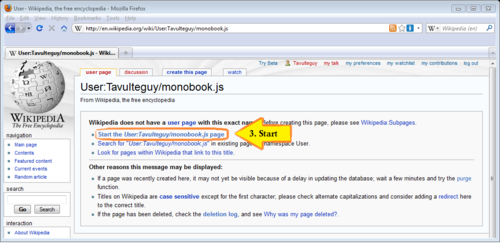
-
Paste the
importScriptto yourmonobook.jspage.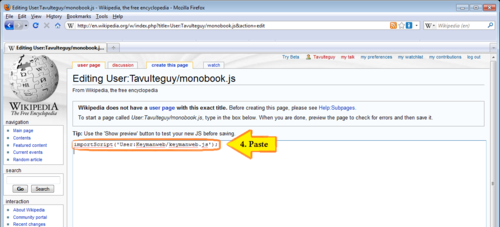
- Save the page.

- You now have KeymanWeb installed in Wikipedia.
To use KeymanWeb, click the KeymanWeb icon.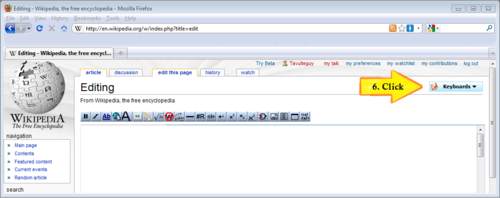
- Select the traditional region for your language.
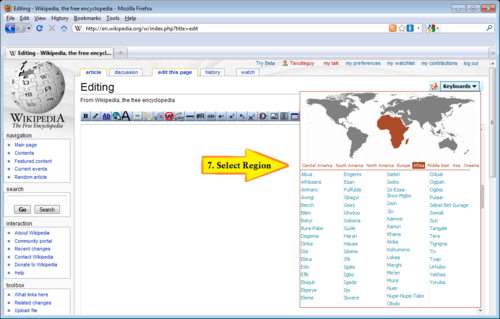
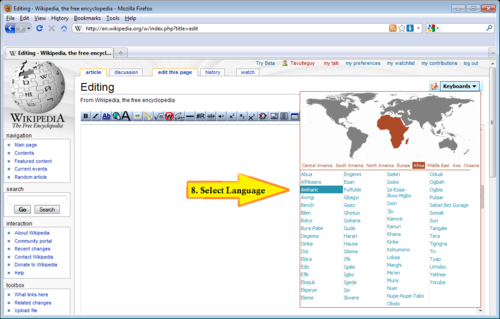
- Select your language.
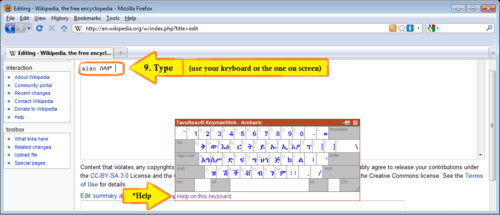
- Start typing! You can use your computer's keyboard or the keyboard on screen. For help on your language's keyboard, click the help link under the on screen keyboard.
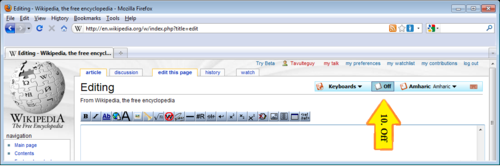
- Finally, click Off on the KeymanWeb menu when you want to stop typing in your language.